Step 1: get the invite link
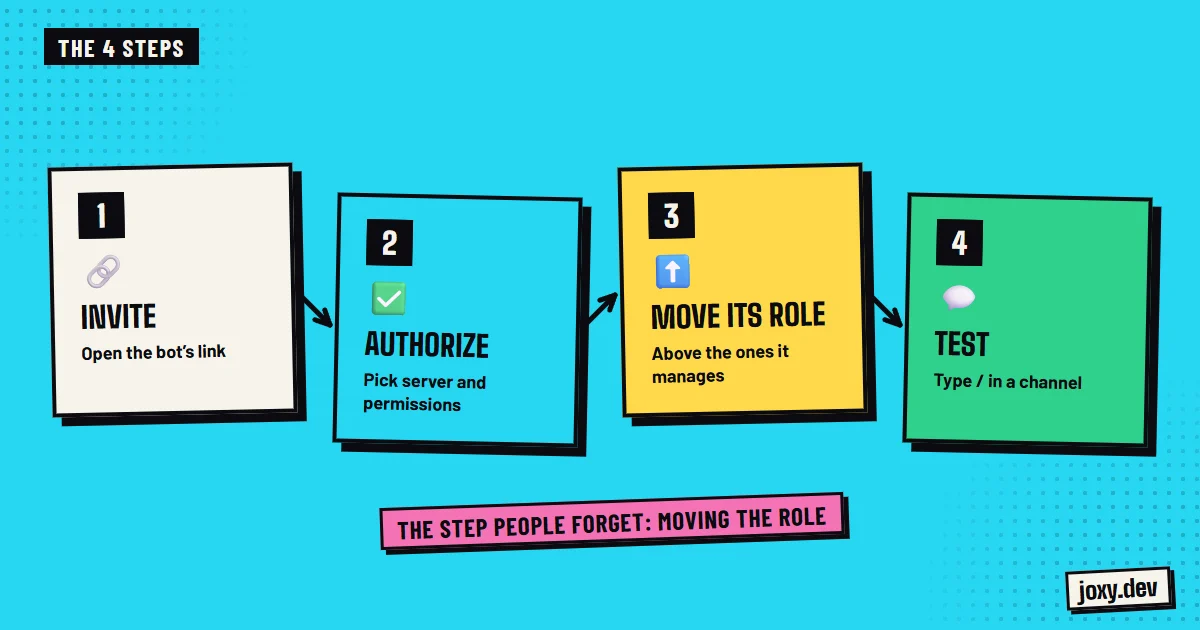
Every bot has its own invite link. Public bots put it on their website or behind the Add to Server button on their Discord profile. If the bot is yours or was built for you, the link is generated in the Discord developer portal, in the OAuth2 section, with the bot and applications.commands scopes.
Step 2: pick the server and authorize
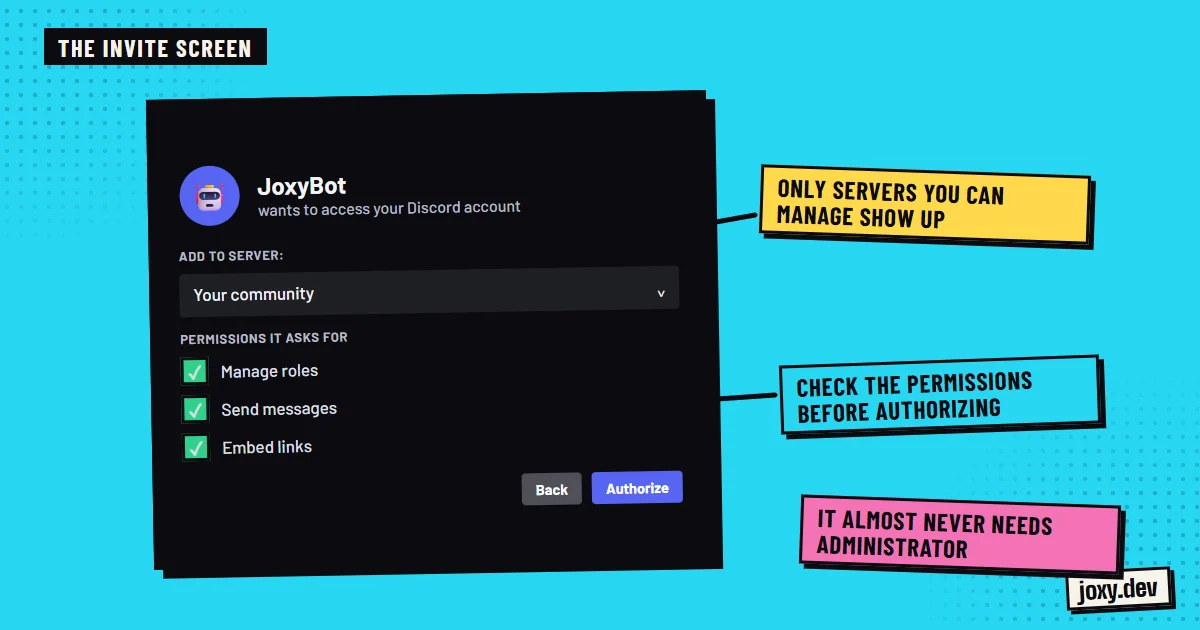
When you open the link, Discord asks you to pick the server and shows the permissions the bot is asking for. Check them before pressing Authorize:
- 1If your server is not in the list, you do not have Manage Server on it.
- 2Untick the permissions the bot does not need for what you will use it for.
- 3Be wary of a bot that asks for Administrator without a clear reason.
Step 3: place its role in the list
When it joins, the bot gets a role with its name. In Server Settings, Roles, drag it above the roles it will hand out or moderate: a role can only manage the ones below it. It is the most common reason a bot cannot give roles or punish anyone.
Step 4: check that it works
Type a slash (/) in a channel and see whether the bot’s commands show up. If they do not, it can take a few minutes, or the bot lacks permission to see that channel. Check the channel’s permissions, not just the role’s, because a channel can have its own rules.
If the bot does not answer
The most common causes are:
- 1The bot is offline: it shows grey in the member list.
- 2It cannot see the channel or cannot send messages in it.
- 3Its role is below the role it is trying to manage.
- 4Its commands have not been registered on your server yet.
Your checklist
0/4
Tick what you already have. It stays saved in this browser.
Was this guide useful?
Thanks! That helps me improve the guides.
 Economy on Discord
 How much does a website cost
 Website for streamers and creators
 How much a Discord bot costs