What kinds of roles a server needs
Almost every server is organized with four kinds:
- 1Team roles: administrators and moderators, with management permissions.
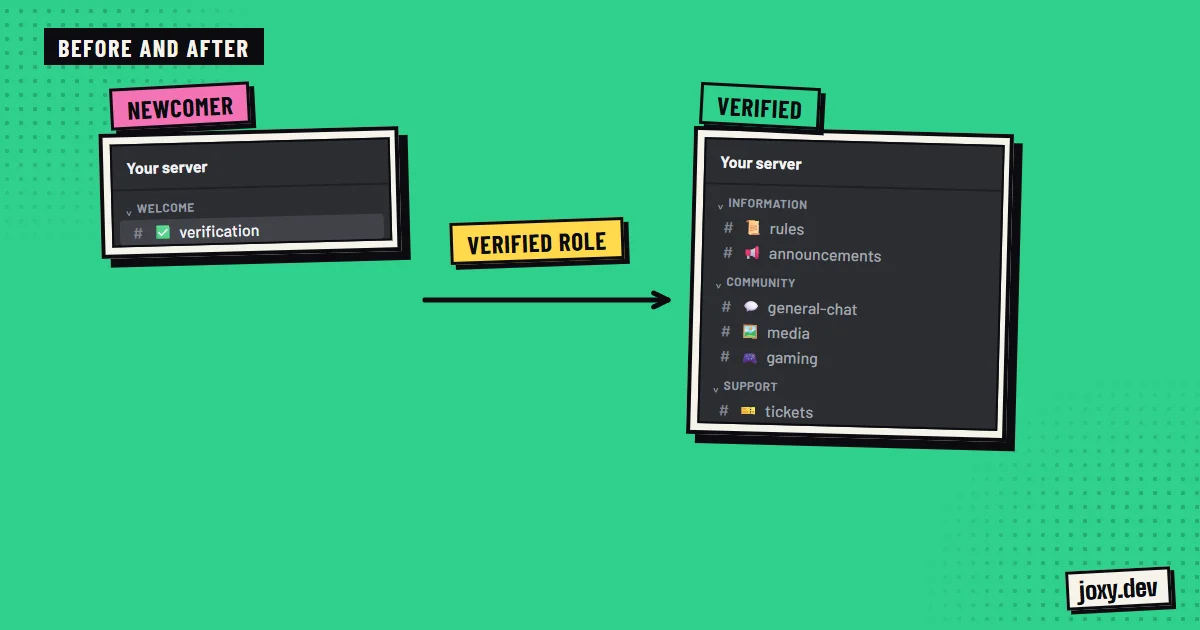
- 2Access roles: verified members, subscribers or collaborators, which open channels.
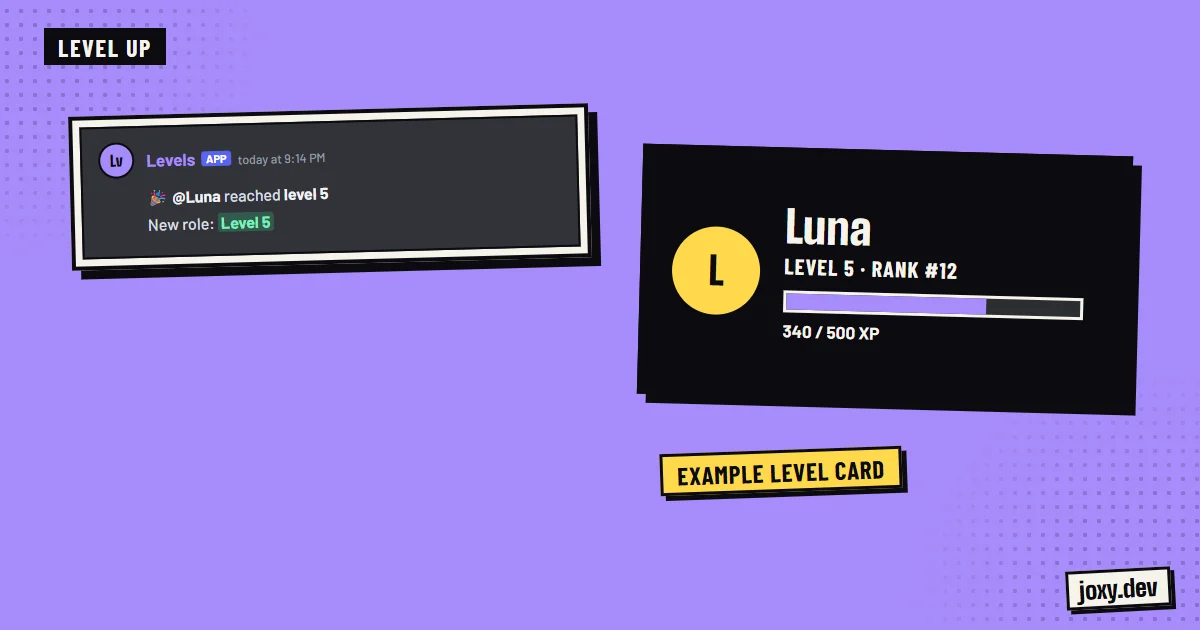
- 3Identity or status roles: levels, colors and ranks earned by taking part.
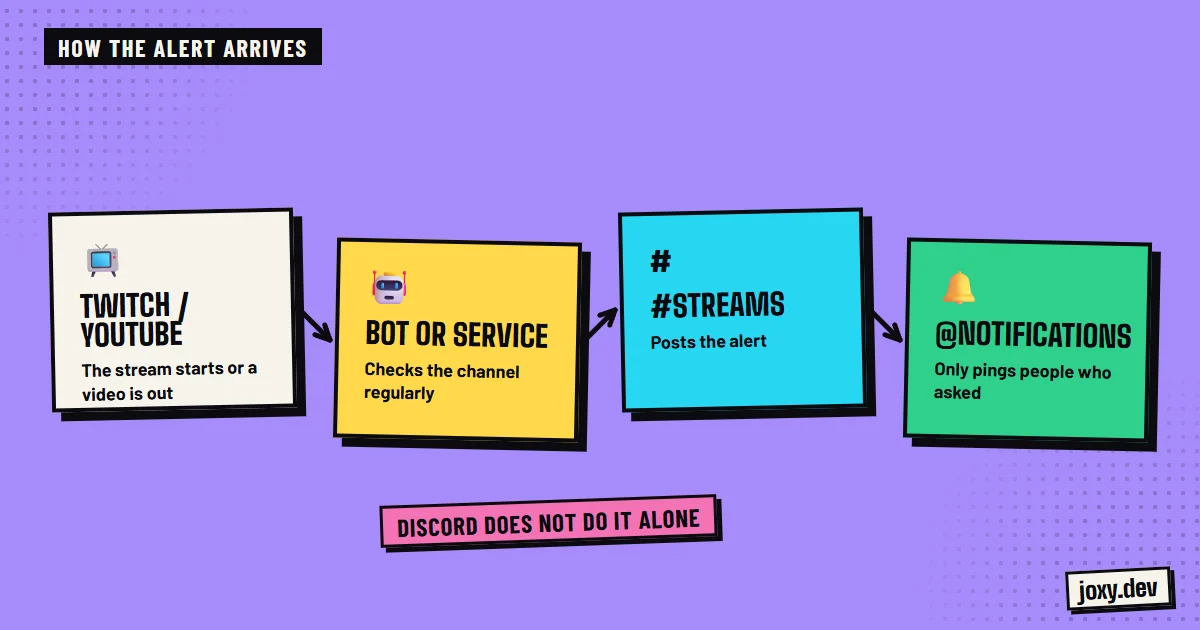
- 4Alert roles: groups that choose to get notifications, like streams or giveaways.
Hierarchy: the order matters
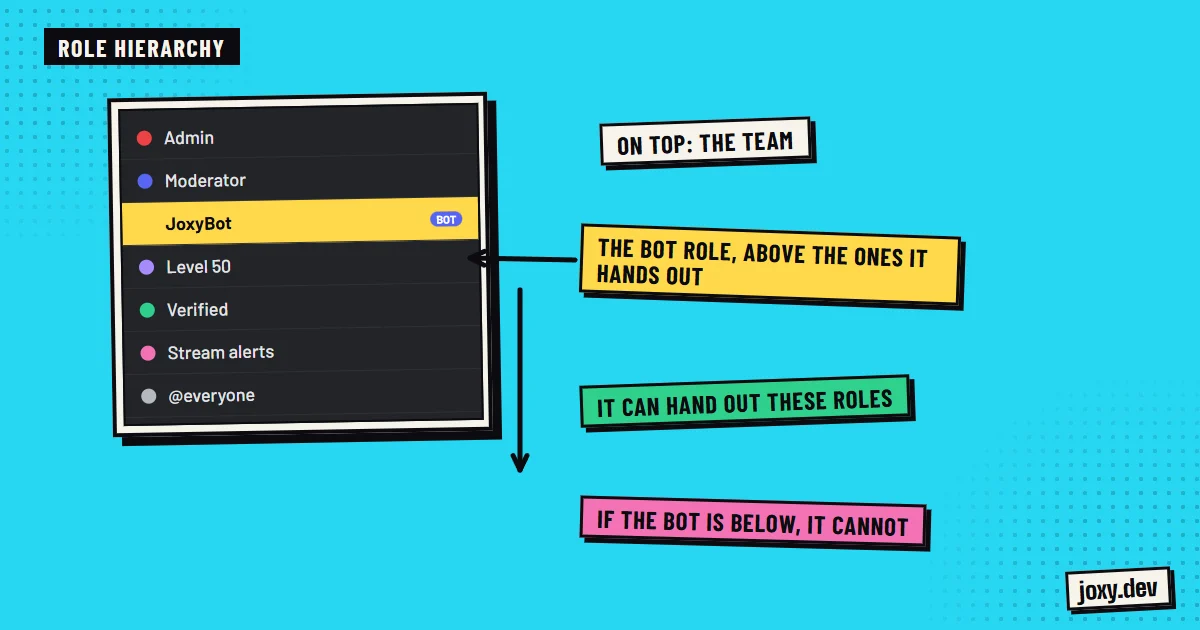
In Discord a role can only manage the ones below it in the list. That is why team roles go on top and alert or level roles go lower down. It also explains the most common bot error: if the bot’s role is below the role it has to assign, it will not be able to. Place the bot’s role above the ones it has to hand out.
Permissions: the minimum needed
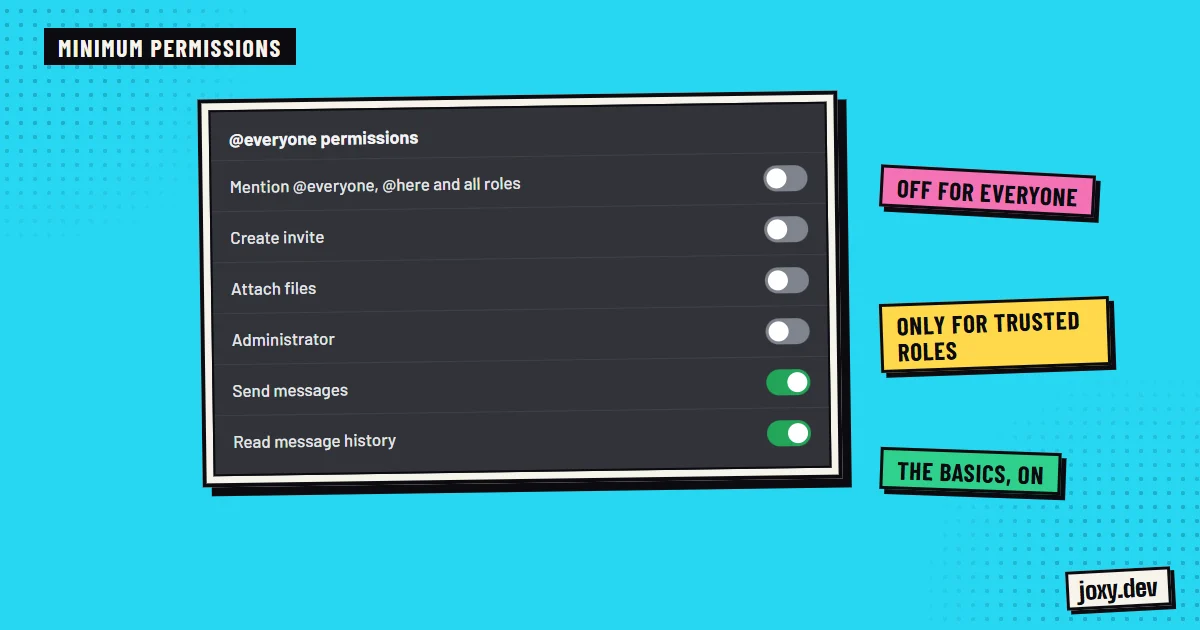
Give each role only what it needs. Take away from @everyone the ability to mention everyone, upload files or create invites and grant it only to trusted roles. The administrator permission overrides every other rule, so it is reserved for very few people. Also check the permissions of each channel, because they can contradict the role.
How to assign roles automatically
Assigning roles by hand does not scale. There are several ways to automate it:
- 1Discord’s welcome screen (Onboarding), available on community servers, asks questions on arrival and assigns roles and channels based on the answer.
- 2Reaction or button roles: the member picks their alert or interest roles on a message.
- 3An automatic role on joining, or after passing captcha verification.
- 4Level roles: on reaching a certain activity level, the role is assigned on its own.
Mistakes that keep repeating
The most common are having dozens of roles nobody understands, giving administrator permissions for convenience, forgetting to move the bot’s role up the list and leaving channels open that a role was supposed to close. A simple structure, planned from the start, avoids almost all of them.
Your checklist
0/4
Tick what you already have. It stays saved in this browser.
Was this guide useful?
Thanks! That helps me improve the guides.
 How to set up a ticket system
 Live alerts on Discord
 How to verify Discord members
 Leveling system on Discord